Part 2: Install & Setup vCenter Server 6.7 Phần 2: Cài đặt & Cấu hình vCenter Server 6.7
Deploying VCSA 7.0/8.0 for Centralized Management Triển khai VCSA 7.0/8.0 để Quản lý Tập trung
Version 1.0 • Updated 01/12/2026
Deploy vCenter Server Appliance (Stage 1)
Triển khai vCenter Server Appliance (Giai đoạn 1)
Step 1: Mount ISO & Start InstallerBước 1: Gắn ISO & Chạy Trình cài đặt
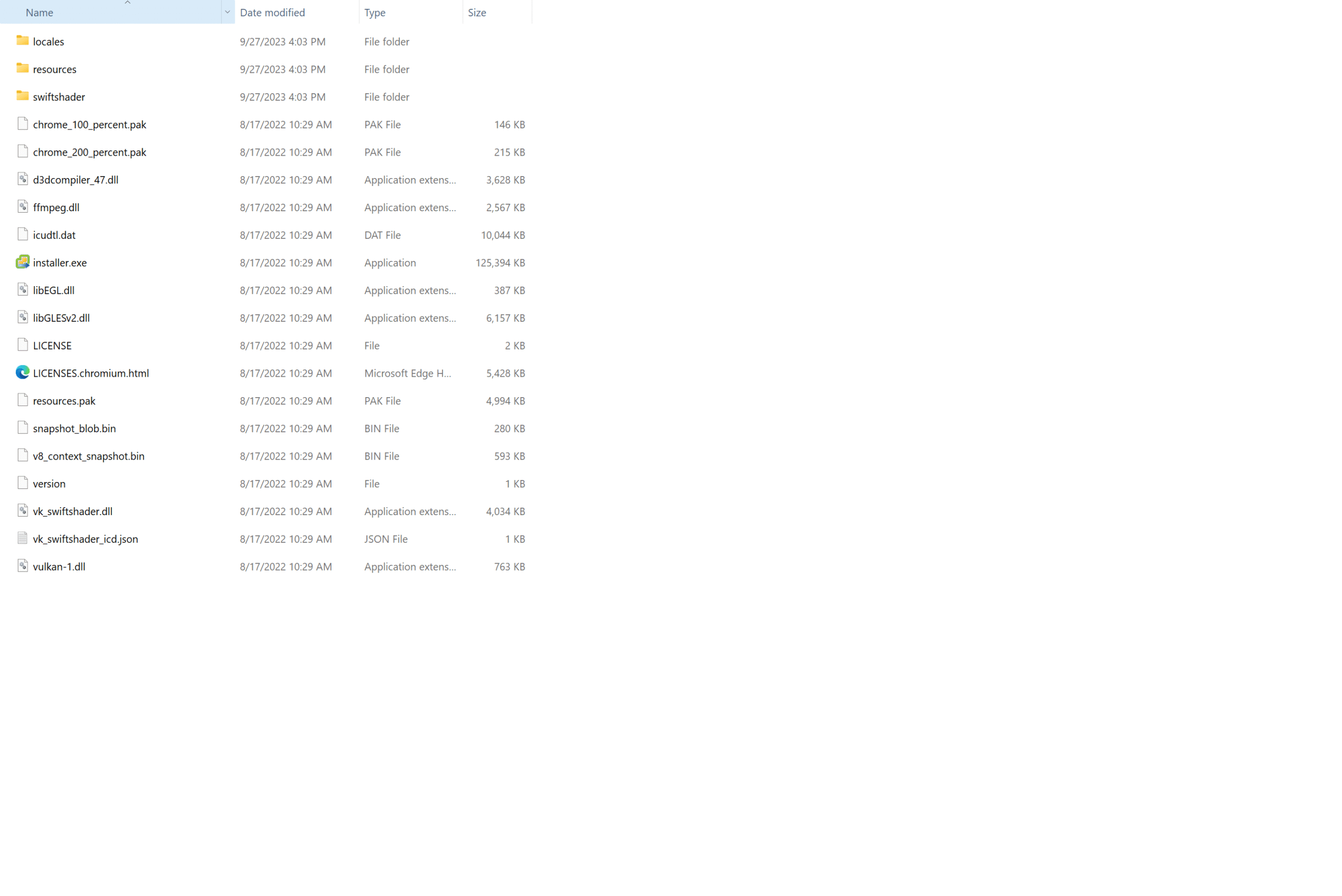
Run vcsa-ui-installer.exe to begin.Chạy vcsa-ui-installer.exe để bắt đầu.
Step 2: Accept End User LicenseBước 2: Chấp nhận Thỏa thuận
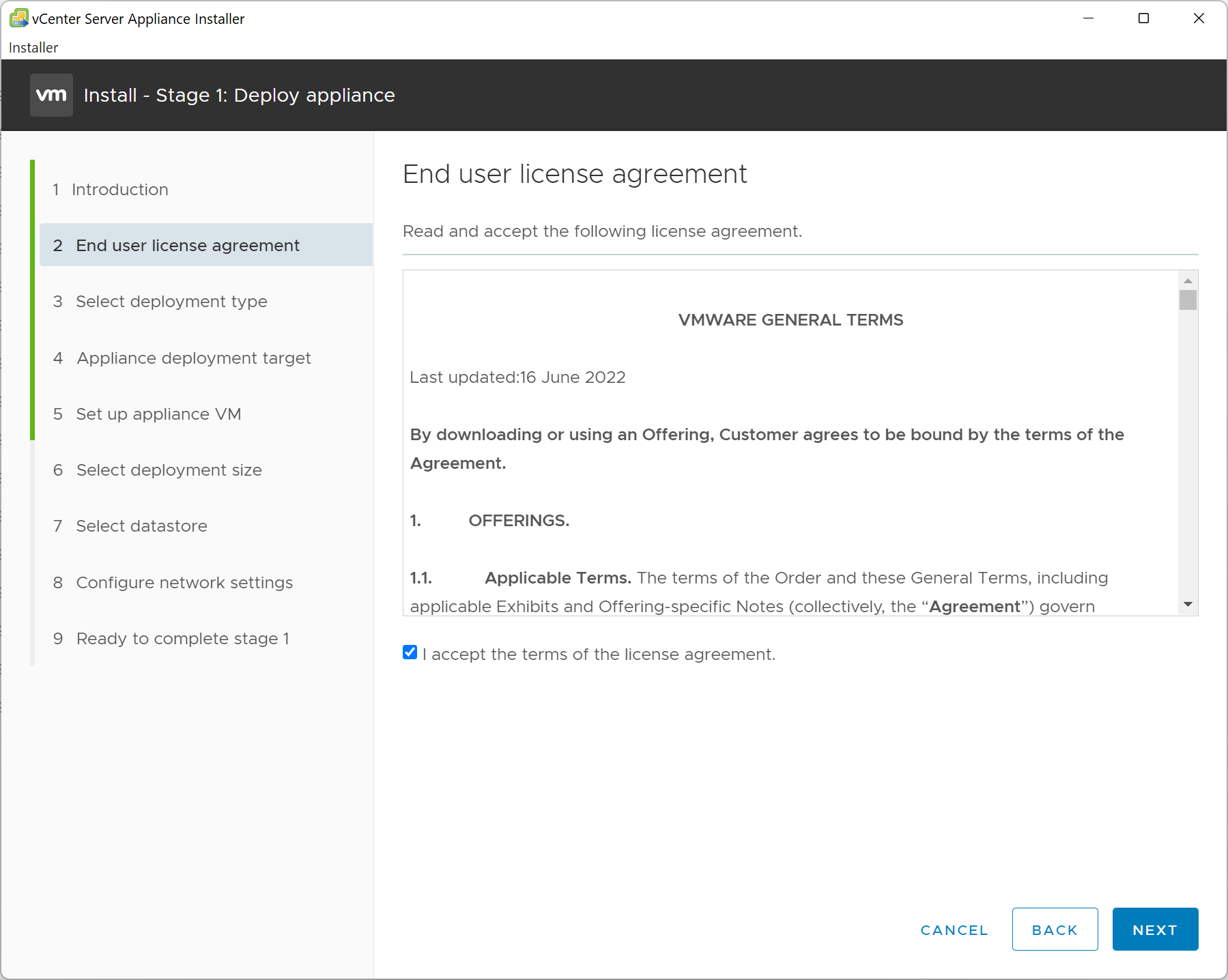
You must check I accept to proceed.Bạn phải chọn I accept để tiếp tục.
Step 3: Select Deployment TypeBước 3: Chọn Loại Triển khai

Choose Embedded Platform Services Controller.Chọn Embedded Platform Services Controller.
Step 4: Configure Target HostBước 4: Cấu hình Host Đích

Enter ESXi host details (IP, root user).Nhập thông tin ESXi host (IP, tài khoản root).
Step 5: Set Up VM InformationBước 5: Thiết lập Thông tin VM

Set VCSA name and root password.Đặt tên VCSA và mật khẩu root.
Step 6: Select Deployment SizeBước 6: Chọn Quy mô Triển khai
| Size | vCPU | RAM | Storage |
|---|---|---|---|
| Tiny | 2 | 10 GB | 300 GB |
| Small | 4 | 16 GB | 340 GB |
| Kích thước | vCPU | RAM | Lưu trữ |
|---|---|---|---|
| Tiny | 2 | 10 GB | 300 GB |
| Small | 4 | 16 GB | 340 GB |
Step 7: Select DatastoreBước 7: Chọn Datastore
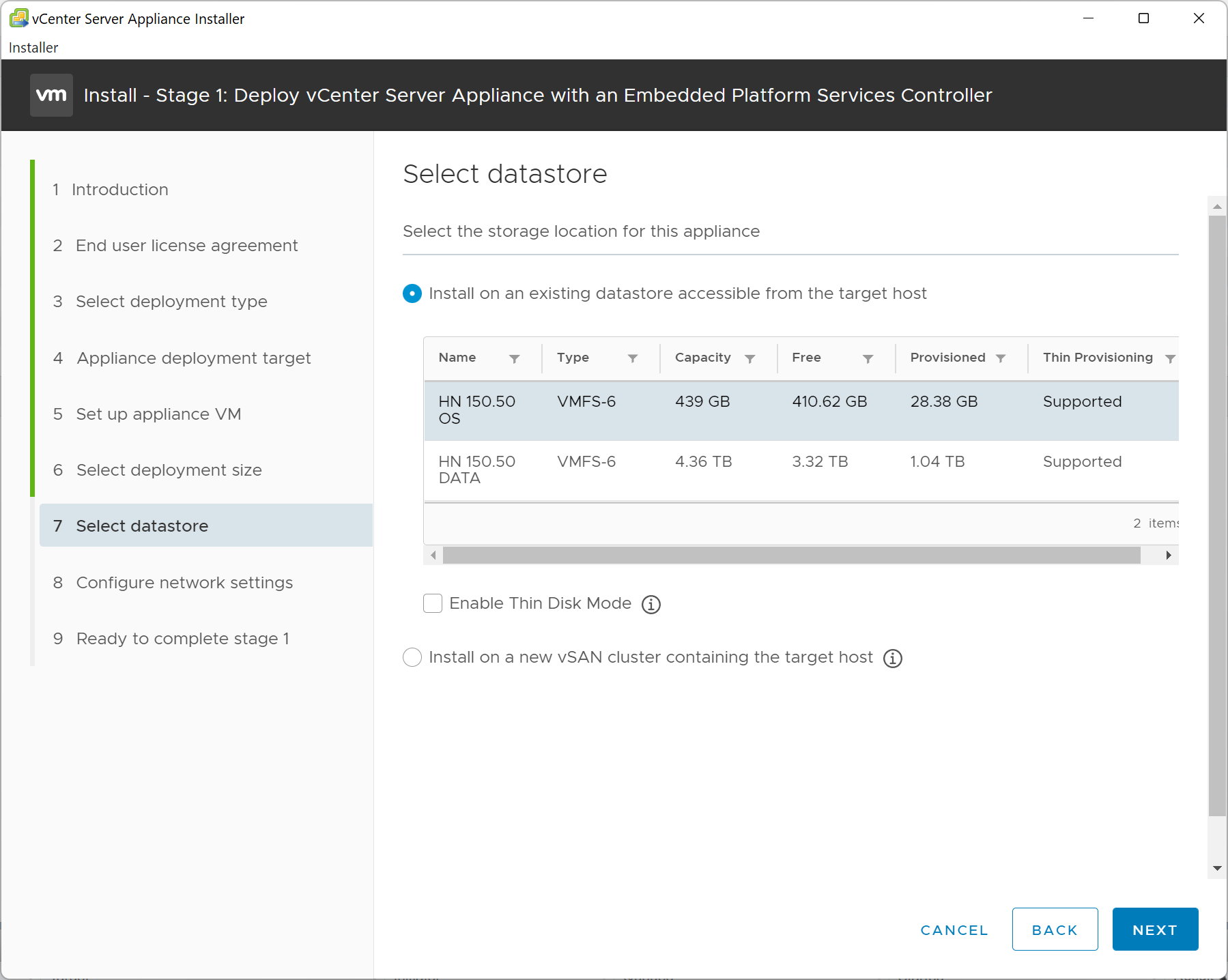
Enable Thin Provisioning.Bật Thin Provisioning.
Step 8: Configure NetworkBước 8: Cấu hình Mạng
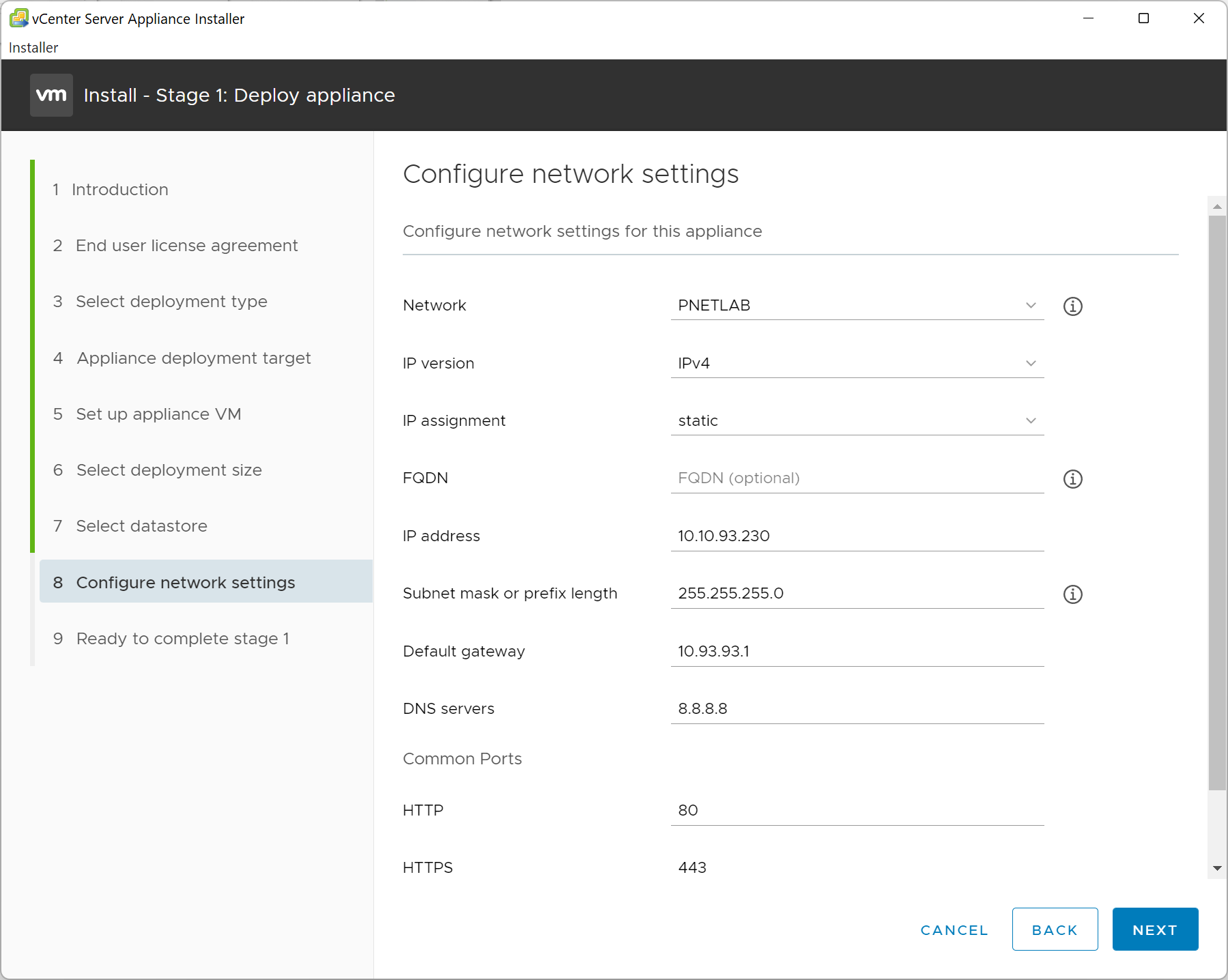
Step 9: Complete Stage 1Bước 9: Hoàn tất Giai đoạn 1
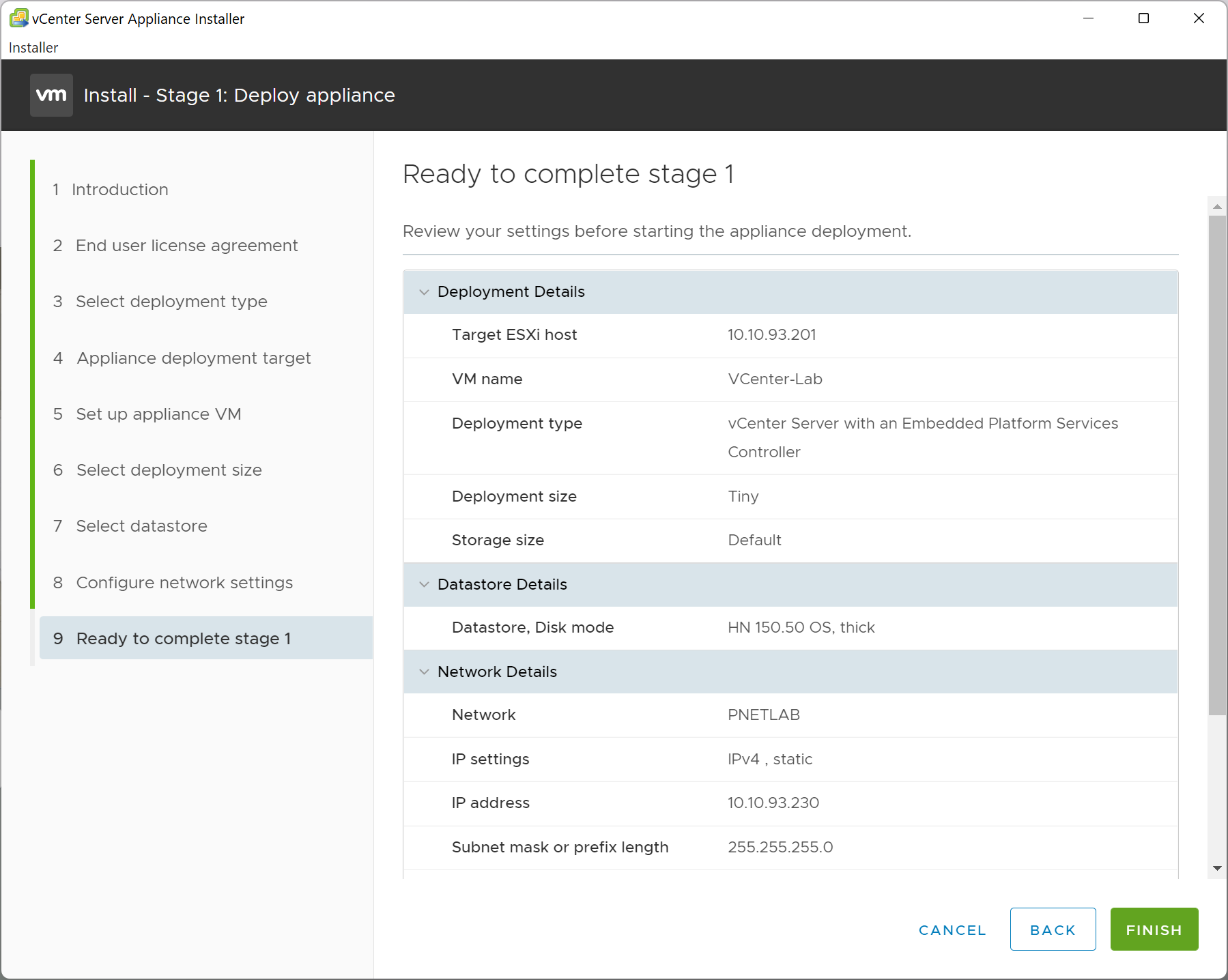
Wait for deployment to finish (5-10 mins).Chờ quá trình triển khai hoàn tất (5-10 phút).
Configure vCenter Server Appliance (Stage 2)
Cấu hình vCenter Server Appliance (Giai đoạn 2)
Step 10: Configure SSO DomainBước 10: Cấu hình SSO Domain

Default:vsphere.local. Cannot change later. Mặc định:vsphere.local. Không thể đổi sau này.
Step 11: CEIP SettingsBước 11: Cài đặt CEIP
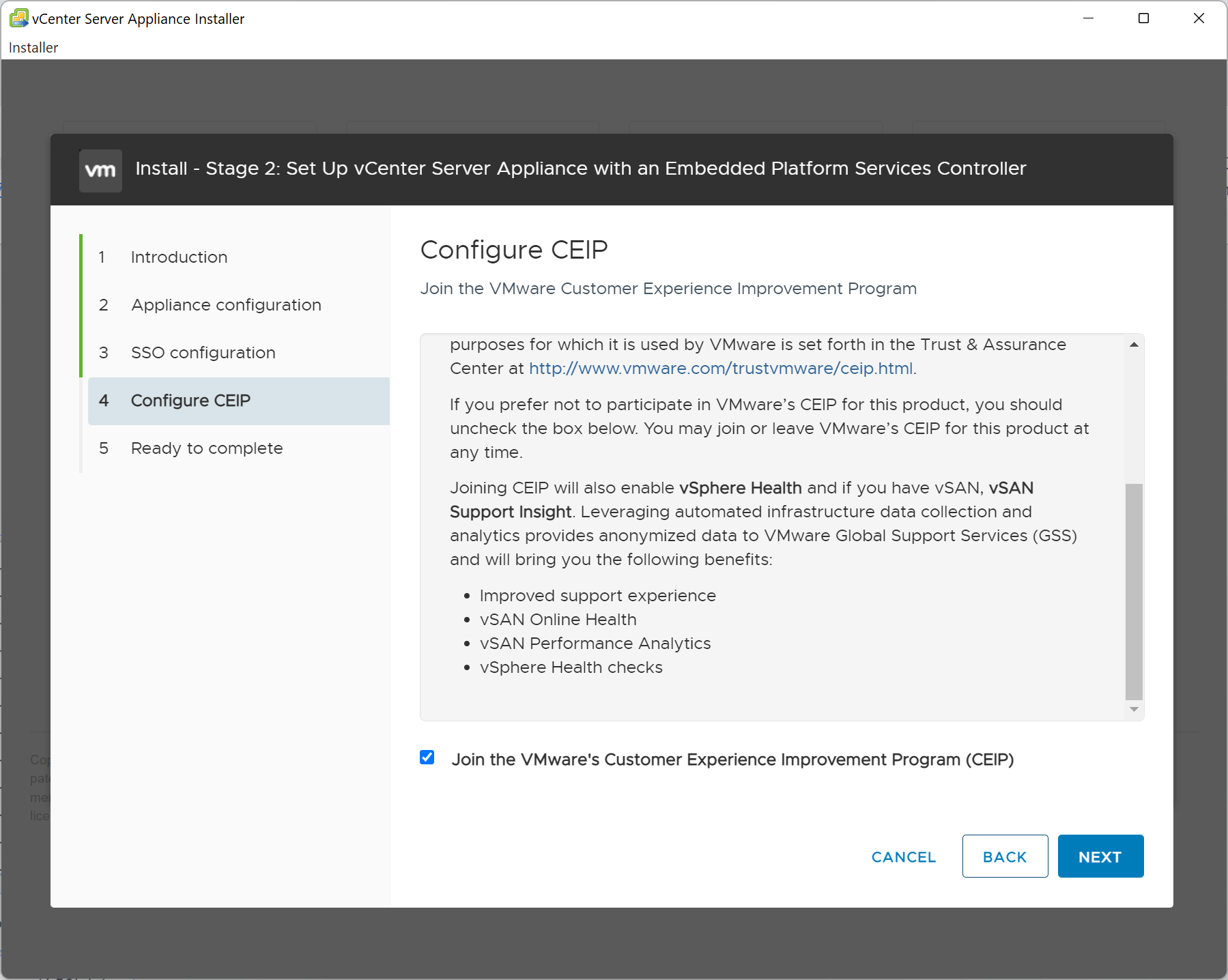
Step 12: Login to vSphere ClientBước 12: Đăng nhập vSphere Client
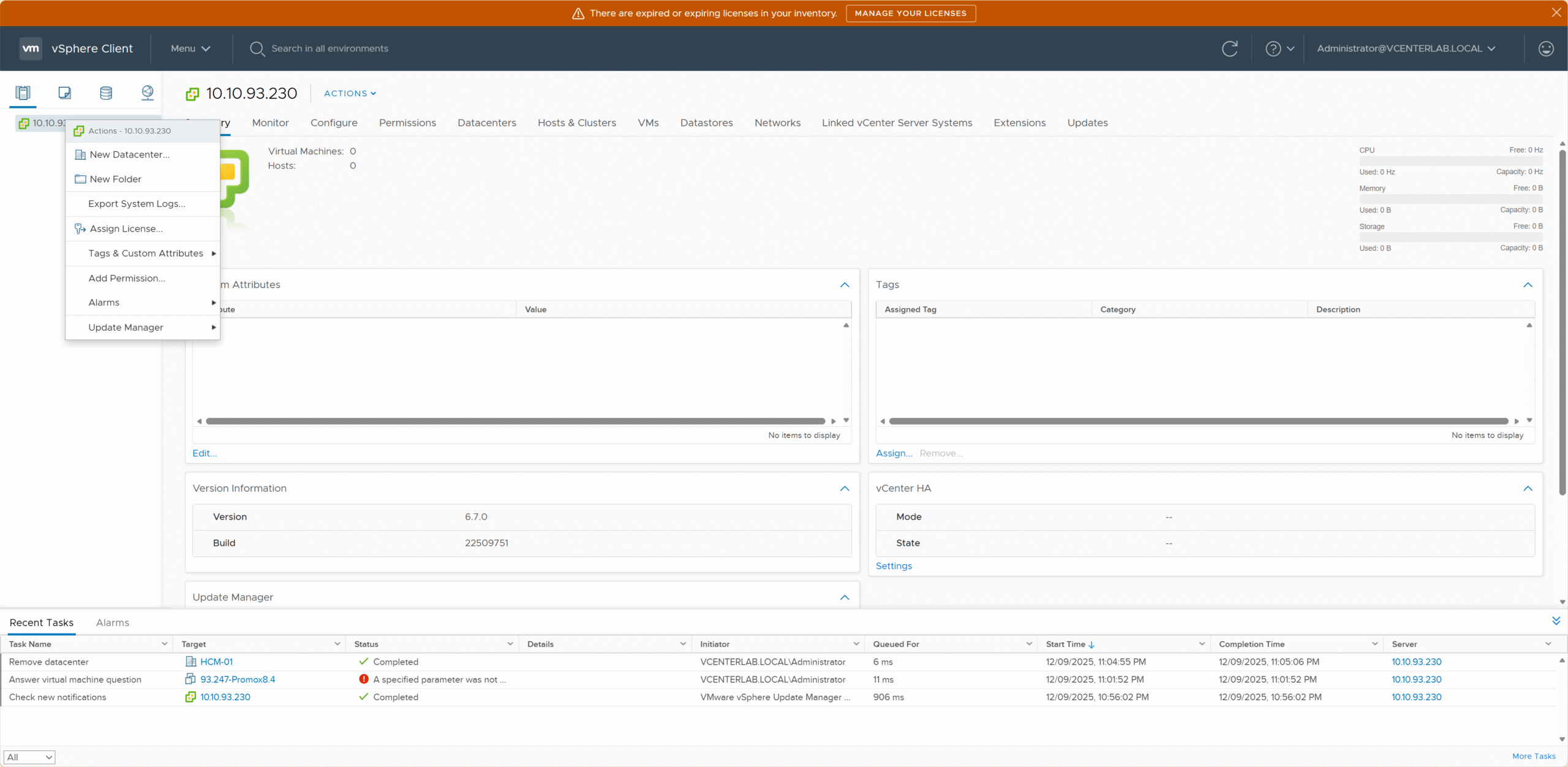
Login with administrator@vsphere.local.Đăng nhập bằng administrator@vsphere.local.
Step 13: Appliance ManagementBước 13: Quản lý Appliance
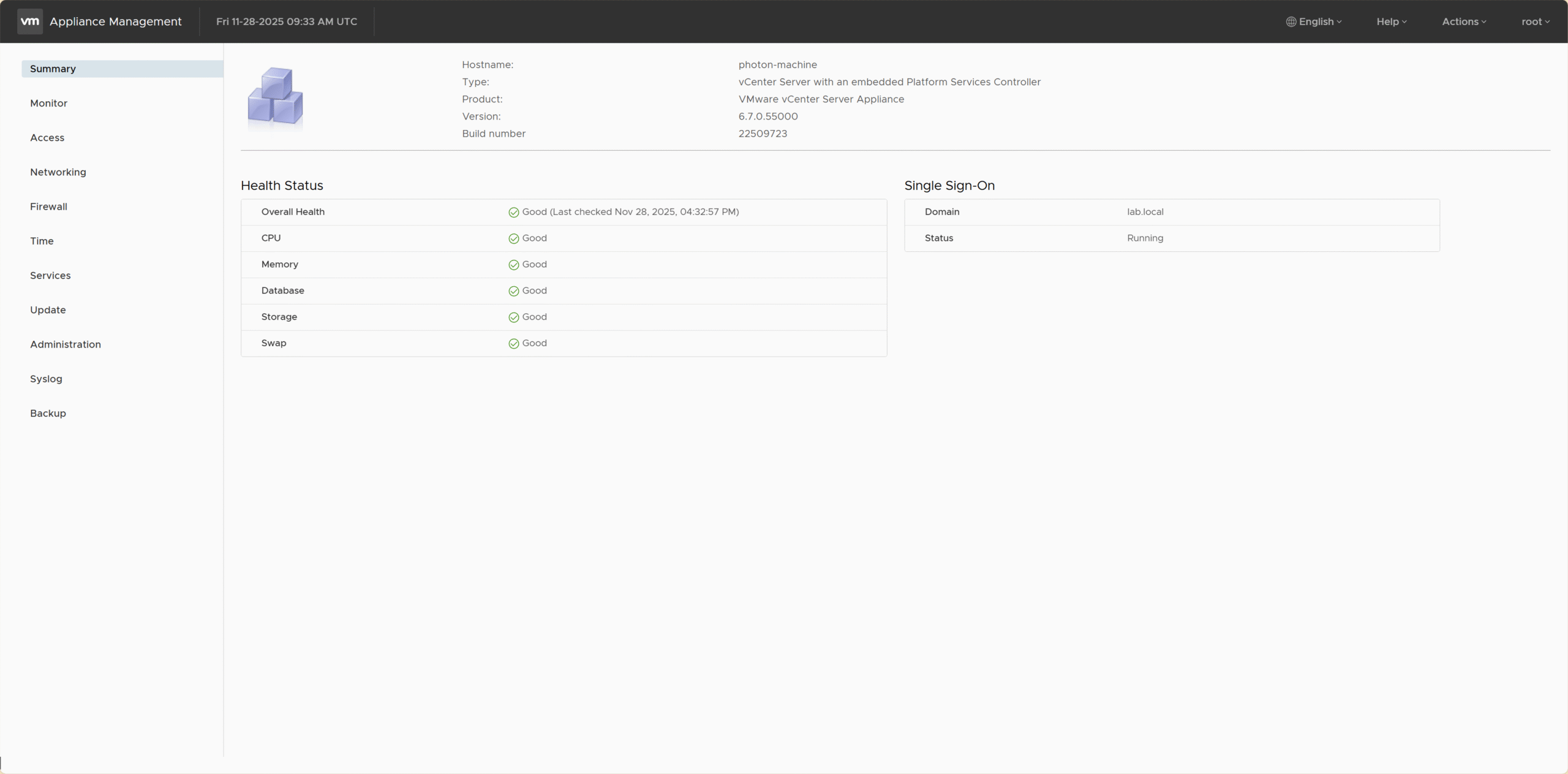
Port 5480 for updates & health check.Cổng 5480 dùng để cập nhật & kiểm tra sức khỏe.
Initial Inventory Configuration
Cấu hình Inventory Ban đầu
Step 14: Create DatacenterBước 14: Tạo Datacenter
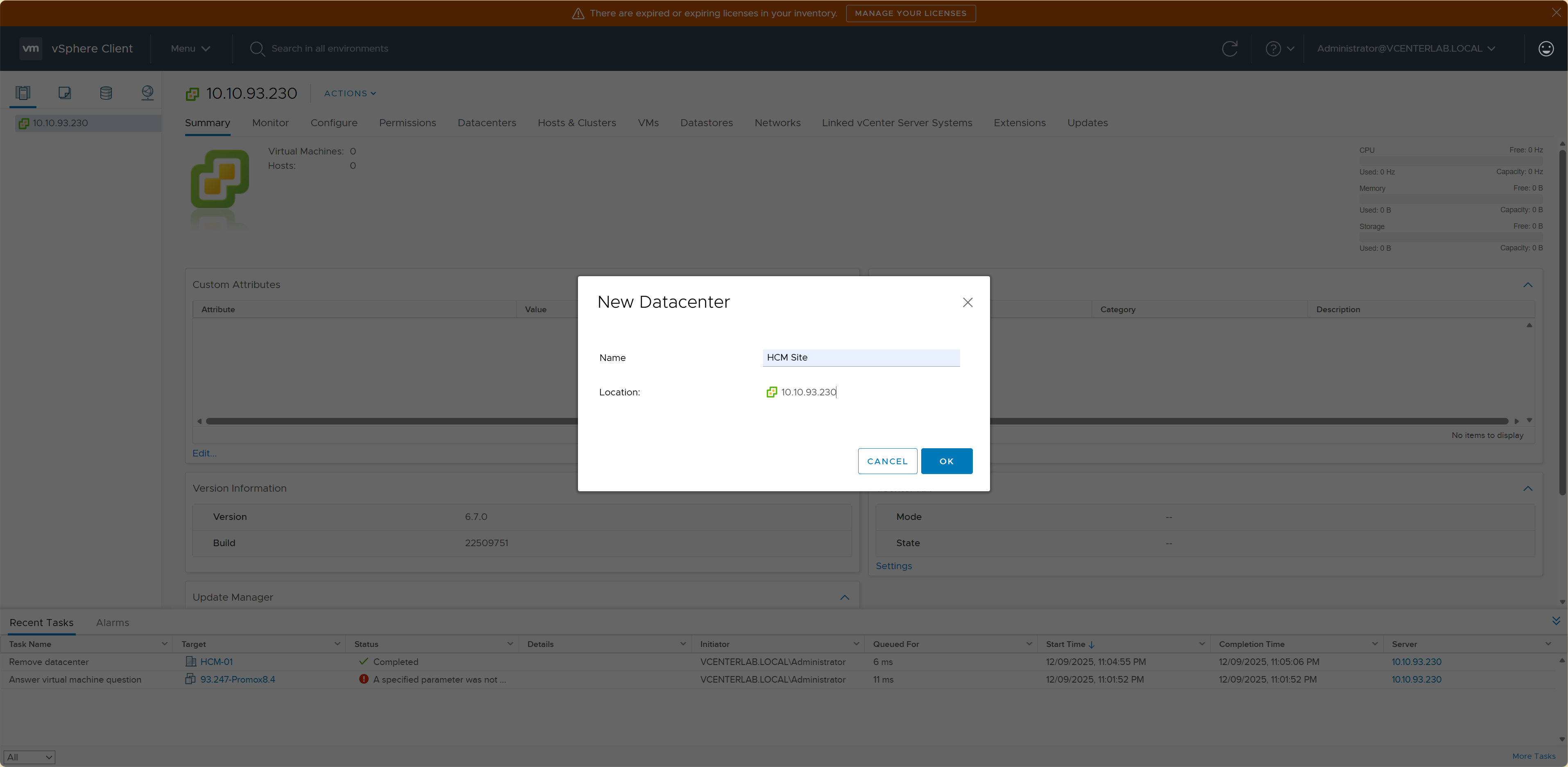
Step 15: Name DatacenterBước 15: Đặt tên Datacenter
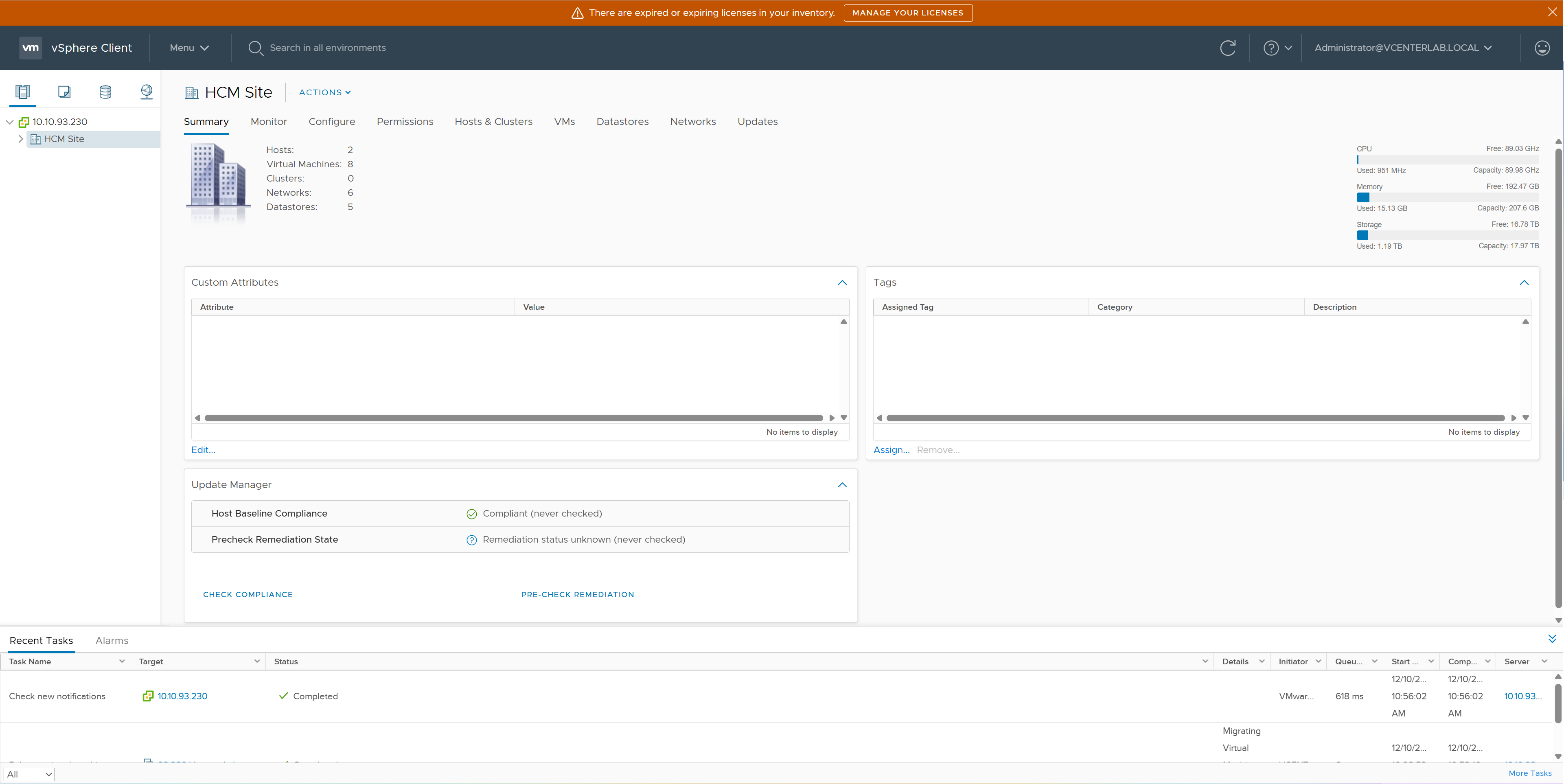
Step 16: Add ESXi HostBước 16: Thêm ESXi Host
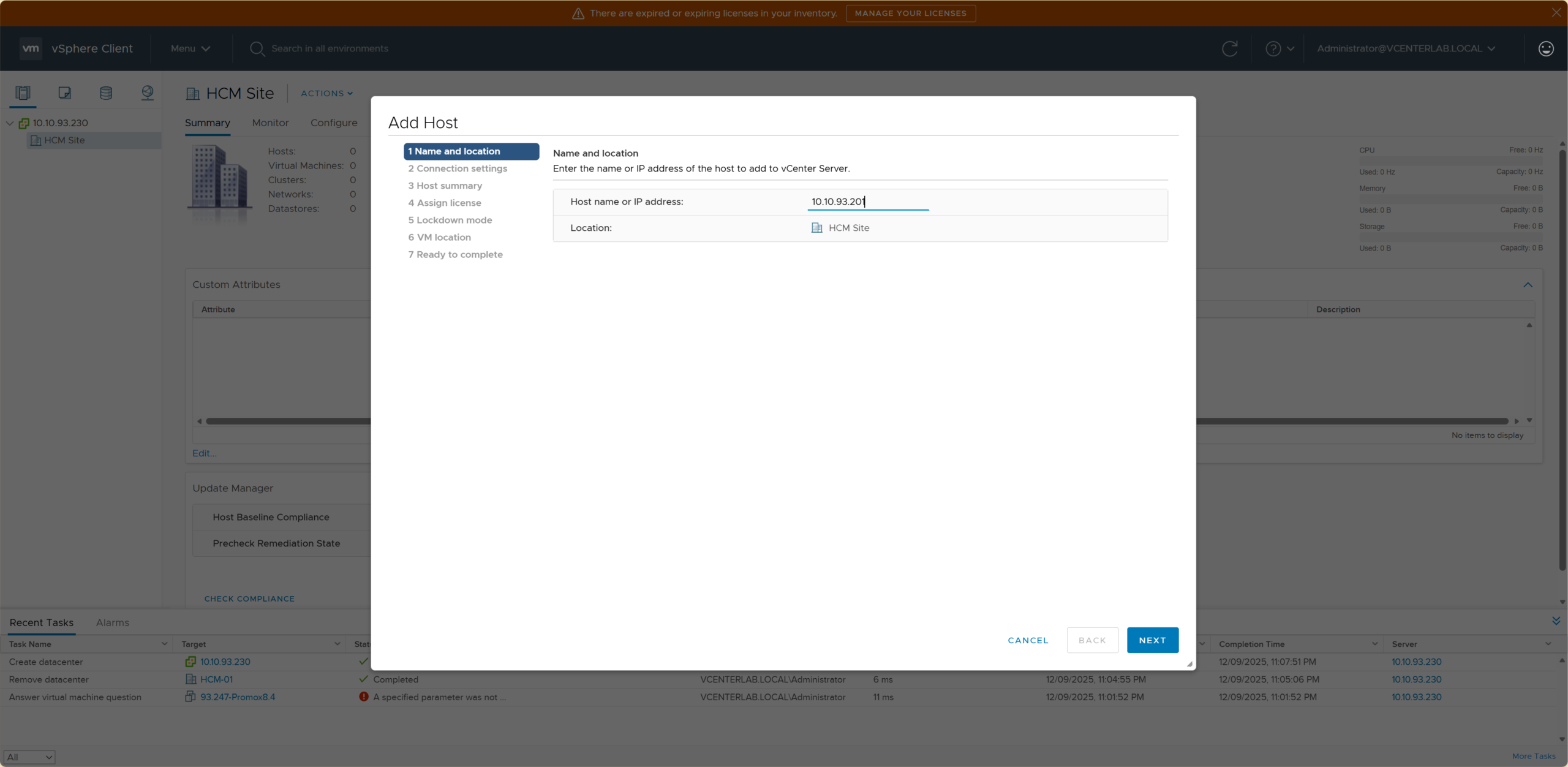
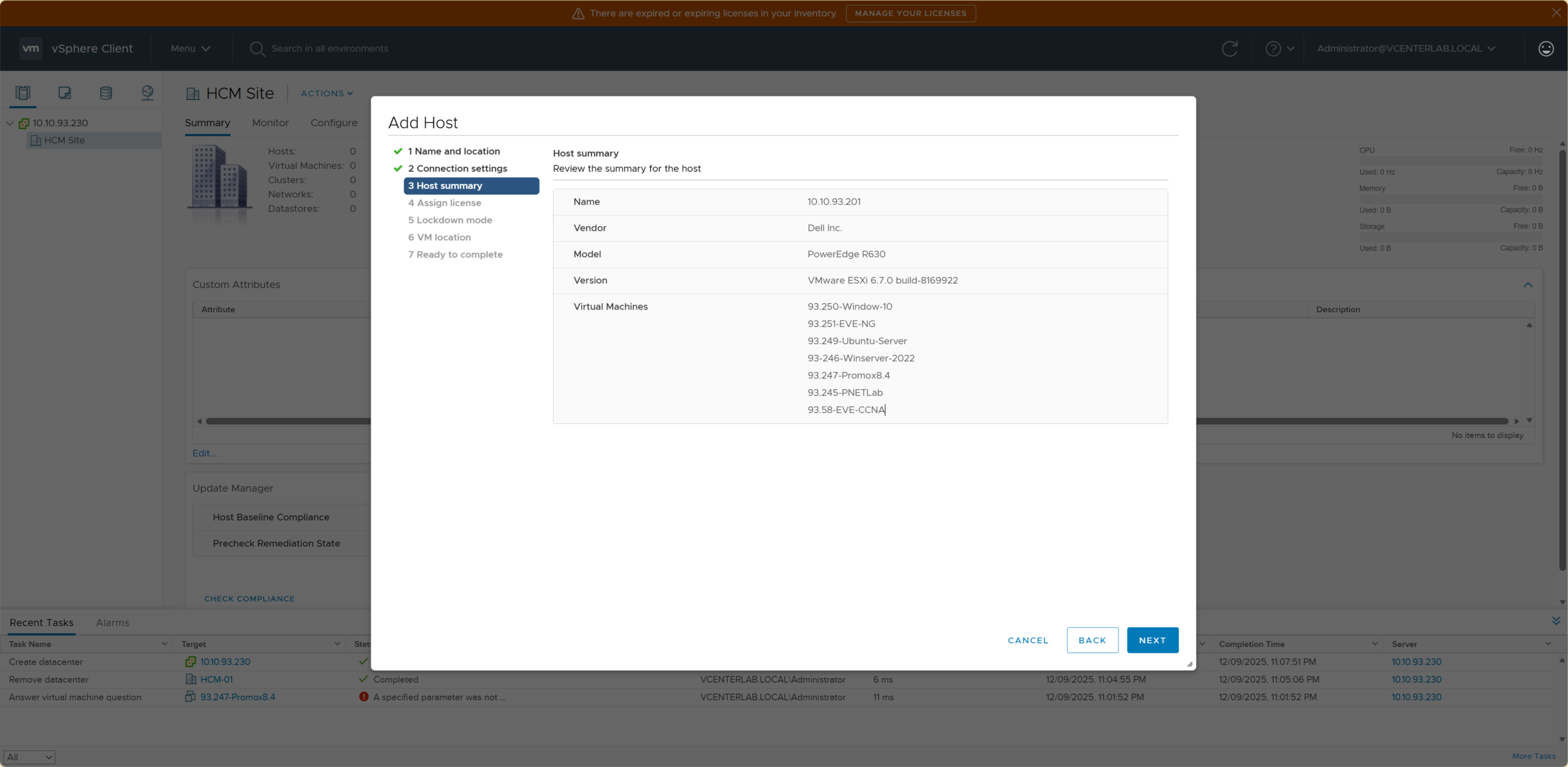
Step 17: CompletionBước 17: Hoàn tất
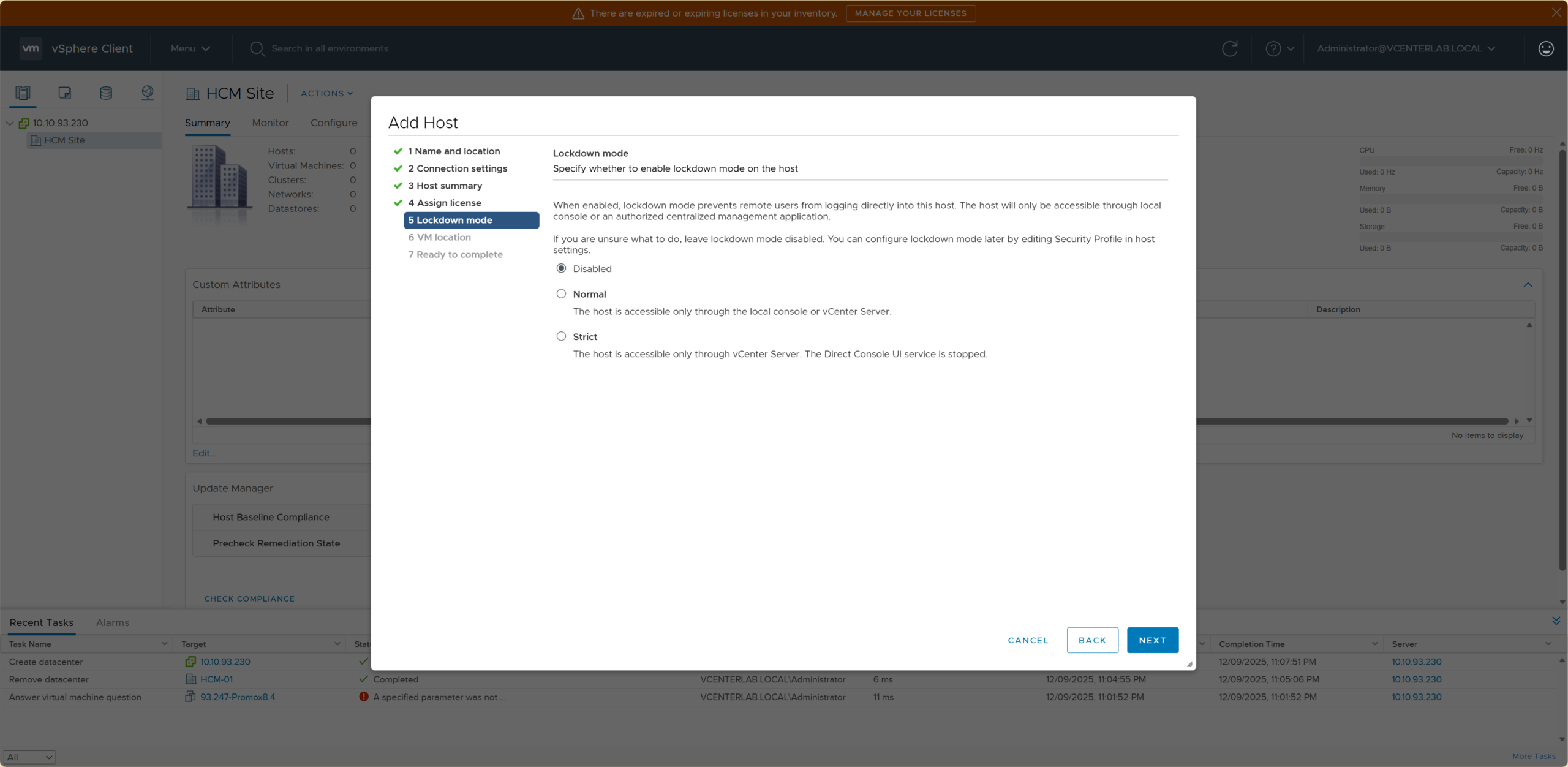
Verify the new host in inventory.Kiểm tra host mới trong danh sách inventory.